01 Introduction
BlitzViwer3D combines a highly simplified Unity/Godot-style scene editor with a Lua
scripting engine that replicates the classic Blitz3D API (CreateCube,
PositionEntity, MoveEntity, etc.). The idea is
to let you build a scene by hand with the mouse (Hierarchy + Inspector), then bring it to life with a
script: move objects, detect simple collisions, have the camera follow the player, read keyboard and
mouse input — all without leaving the app.
Edit mode
Create and arrange objects (cubes, spheres, or .obj models) using
Hierarchy and Inspector. This layout can be saved as a scene.
Play mode
Pressing Play runs the script in the Script panel. The edit-mode scene is backed up automatically and restored when you press Stop.
02 General interface
The window is organized into dockable panels, IDE-style:
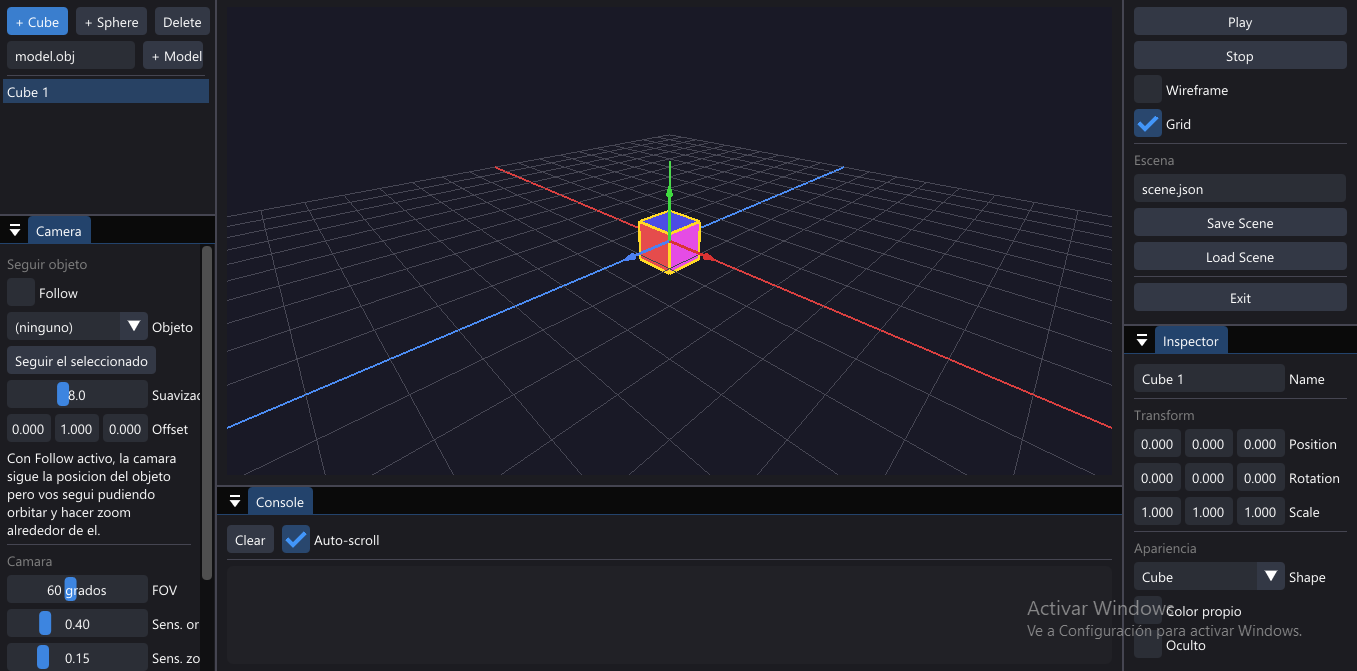
| Panel | Function |
|---|---|
| Hierarchy | List of objects in the scene. Create/delete cubes, spheres, and models. |
| Inspector | Properties of the selected object: name, transform, shape, color. |
| Script | Lua code editor (tab next to Render). |
| Render | 3D viewport where you view and navigate the scene. |
| Console | Output of print(), Lua errors, and Play/Stop events. |
| Camera | Orbit camera settings and "Follow" mode. |
| Toolbar | Play / Stop, Wireframe, Grid, save/load scene, exit. |
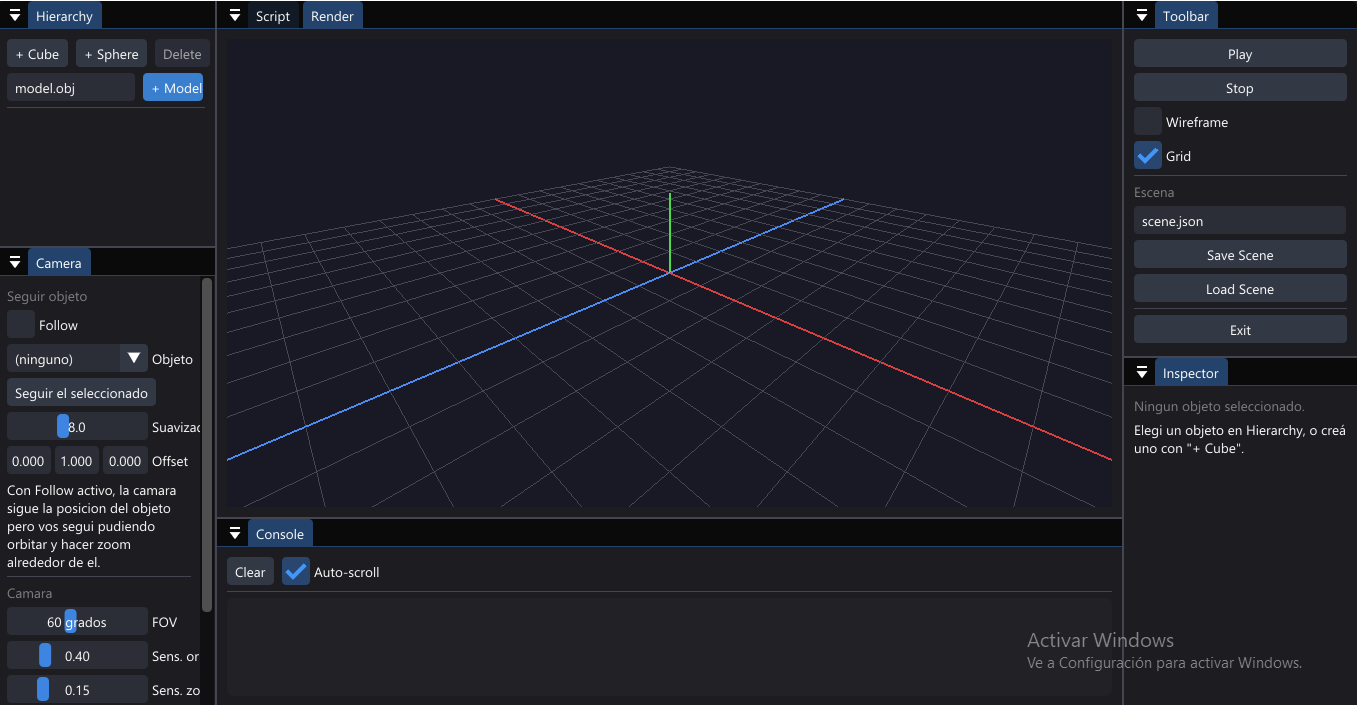
03 Hierarchy panel — creating objects
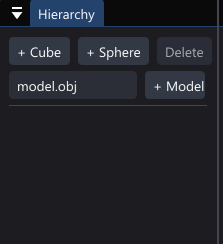
- + Cube / + Sphere: create a new object at the origin and select it automatically.
- Delete: deletes the selected object (only enabled when one is selected).
- Text field + Model: type the path to an
.objfile (e.g.model.obj) and click + Model to load it..mtlmaterials are looked up in the same folder. - The list below shows all objects in the scene. Hidden objects appear dimmed with the (hidden) tag. Click to select.
04 Inspector panel — editing properties
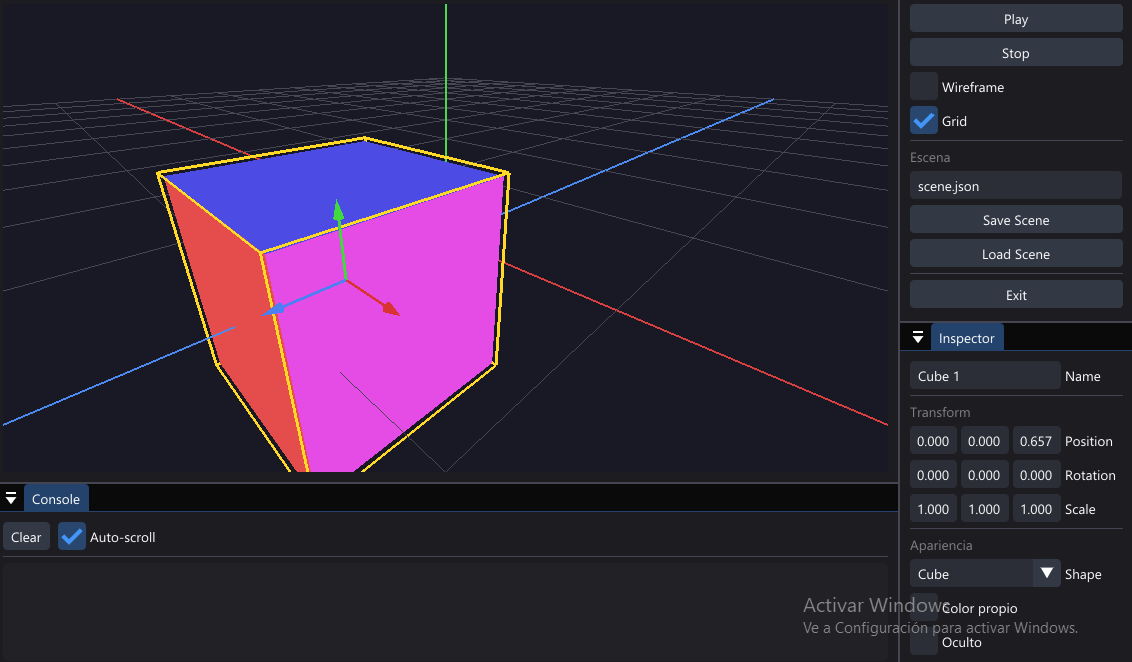
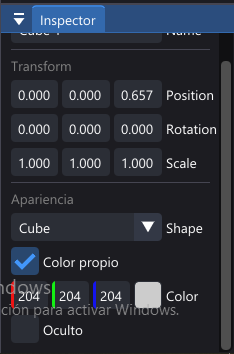
| Field | Description |
|---|---|
| Name | Object name. Used with GetEntityByName from the script. |
| Position / Rotation / Scale | Transform in X, Y, Z. Rotation in degrees. Drag with the mouse to change the value, or double-click to type it. |
| Shape | Cube or Sphere. If the object comes from an .obj file, this is replaced by the model path and its triangle count, with a Reload button. |
| Custom color | When off, the object uses the default "rainbow" color per face. When on, you can pick a solid color with the RGB selector. |
| Hidden | Same as HideEntity/ShowEntity from script: hides the object without deleting it. |
05 Camera panel
The camera is an orbit camera (yaw / pitch / distance around a "target" point), with the option to automatically follow an object:
| Control | What it does |
|---|---|
| Follow + Object | When enabled, the orbit's target point follows the chosen object's position, with configurable smoothing. You can still orbit and zoom around it. |
| Follow selected | Shortcut: enables Follow on the object currently selected in Hierarchy. |
| Smoothing | How fast the camera "catches up" to the followed object (higher = more immediate). |
| Offset | Offset of the follow point relative to the object (e.g. to look slightly above it). |
| FOV | Camera field of view, in degrees. |
| Orbit sens. / Zoom sens. | Mouse sensitivity when orbiting (right button) and zooming (wheel). |
| Invert pitch (Y) | Inverts the vertical axis while orbiting. |
| Min/max distance | Zoom limits. |
| Reset Camera | Resets all camera values to factory defaults. |
06 Viewport (Render) & mouse controls
| Action | Control |
|---|---|
| Orbit camera | Drag with the Right mouse button |
| Zoom | Mouse Wheel |
| Select object | Click in Hierarchy, or from the script |
| Toolbar | Function |
|---|---|
| Play | Backs up the scene, resets the console and the internal clock, compiles and runs the script, and calls Start() if it exists. |
| Stop | Closes the Lua state and restores the scene to how it was before Play. |
| Wireframe | Draws objects in wireframe mode. |
| Grid | Shows/hides the grid floor and reference axes. |
| Save Scene / Load Scene | Saves or loads the scene (objects + camera) to a JSON file, named per the text field (default scene.json). |
| Exit | Closes the application. |
07 Script Editor
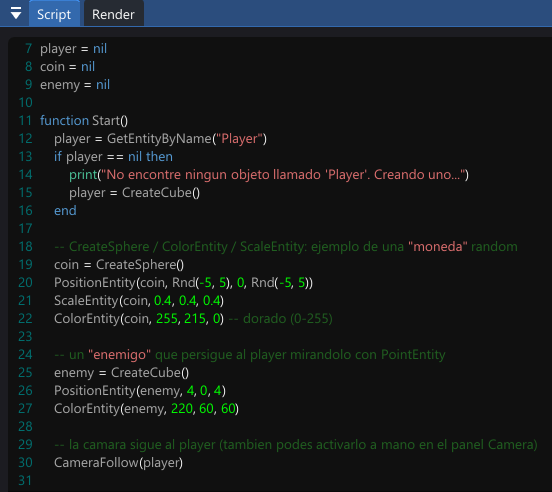
The Script panel is a text editor with Lua syntax highlighting. The code you write there is what runs when you press Play.
Special functions
The script can define two global functions that the engine calls automatically:
| Function | When it runs |
|---|---|
Start() | Once, right after pressing Play (after the rest of the script runs). |
Update(dt) | Once per frame while the game is running. dt is the time in seconds since the previous frame. |
Minimal example
-- Runs once at startup
function Start()
    player = CreateCube()
    ColorEntity(player, 80, 160, 255)
    PositionEntity(player, 0, 0.5, 0)
    CameraFollow(player)
end

-- Runs every frame
function Update(dt)
    local speed = 4
    if KeyDown(0x57) then MoveEntityLocal(player, 0, 0,  speed*dt) end -- W
    if KeyDown(0x53) then MoveEntityLocal(player, 0, 0, -speed*dt) end -- S
    if KeyDown(0x41) then TurnEntity(player, 0, -90*dt, 0) end -- A
    if KeyDown(0x44) then TurnEntity(player, 0,  90*dt, 0) end -- D
end
KeyDown/KeyHit
are Windows Virtual-Key Codes (e.g. 0x57 = "W",
0x20 = spacebar, 0x1B = Escape).
08 Lua API reference
All of these functions are available as globals inside the script, no need
for require. "Objects" are referenced by a numeric handle
(the value returned by CreateCube, CreateSphere, etc.).
Creating and querying objects
| Function | Description |
|---|---|
CreateCube() | Creates a cube and returns its handle. |
CreateSphere() | Creates a sphere and returns its handle. |
LoadModel(path) | Loads an .obj model (reuses the mesh if already loaded) and creates an object with it. |
GetEntityByName(name) | Returns the handle of the first object with that name, or nil if none exists. |
EntityByIndex(i) | Returns the handle at position i (1..CountEntities()), useful for iterating over all objects. |
CountEntities() | Total number of objects in the scene (includes hidden/deleted ones). |
EntityExists(handle) | Checks whether a handle is still valid, without raising an error. |
EntityName(handle) | Returns the object's name. |
DeleteEntity(handle) | "Soft" delete: hides the object and renames it to (deleted) (other objects' handles stay valid). |
Transform
| Function | Description |
|---|---|
PositionEntity(h, x, y, z) | Sets the absolute position. |
MoveEntity(h, dx, dy, dz) | Adds a displacement in world space. |
MoveEntityLocal(h, dx, dy, dz) | Moves in the object's local space (based on its Y rotation): z = forward/backward, x = right/left, y = up/down. |
RotateEntity(h, rx, ry, rz) | Sets the absolute rotation, in degrees. |
TurnEntity(h, drx, dry, drz) | Adds rotation (degrees) to the current one. |
ScaleEntity(h, sx, sy, sz) | Sets the scale on each axis. |
PointEntity(h, target) | Rotates h on Y so its front faces target. Great for simple AI ("look at the player"). |
EntityX/Y/Z(h) | Return the position on each axis. |
EntityRotX/Y/Z(h) | Return the rotation on each axis. |
EntityScaleX/Y/Z(h) | Return the scale on each axis. |
EntityDistance(a, b) | Euclidean distance between two objects. |
EntitiesOverlap(a, b) | Simple axis-aligned box (AABB) collision, using scale as size. |
Appearance & visibility
| Function | Description |
|---|---|
ColorEntity(h, r, g, b) | Solid color, values 0-255 (as in Blitz3D). Passing (-1,-1,-1) restores the default rainbow color. |
HideEntity(h) / ShowEntity(h) | Hides or shows the object. |
EntityHidden(h) | Returns whether it's hidden. |
Camera
| Function | Description |
|---|---|
CameraFollow(h) | Enables camera follow on object h (equivalent to checking "Follow" in the Camera panel). |
CameraFollowOff() | Disables following. |
SetCameraTarget(x, y, z) | Manually sets the point the camera looks at / orbits around. |
SetCameraAngles(yaw, pitch) | Sets the orbit angles (pitch is clamped to ±89°). |
SetCameraDistance(d) | Sets the camera distance to the target (clamped to the configured min/max limits). |
CameraTargetX/Y/Z() | Return the current target point. |
CameraYaw() / CameraPitch() / CameraDist() | Return the current orbit values. |
Input (keyboard / mouse)
| Function | Description |
|---|---|
KeyDown(vk) | True while the key is held down. vk is a Windows Virtual-Key Code. |
KeyHit(vk) | True only on the frame the key goes from up to down. |
MouseX() / MouseY() | Mouse position relative to the viewport (0,0 = top-left corner). Returns -1,-1 if the mouse is outside the viewport. |
MouseInViewport() | True if the mouse is over the Render viewport. |
MouseDown(btn) / MouseHit(btn) | Mouse button state. btn: 1 = left, 2 = right, 3 = middle. |
Utilities
| Function | Description |
|---|---|
GetTime() | Seconds elapsed since Play was pressed. |
Rnd() / Rnd(max) / Rnd(min,max) | Random floating-point number: 0..1, 0..max, or min..max. |
Rand(min, max) | Random integer between min and max, inclusive. |
Clamp(v, min, max) | Clamps v to the [min, max] range. |
print(...) | Overrides Lua's standard print: output goes to the Console panel instead of a terminal. |
09 Saving and loading scenes
Save Scene / Load Scene (in the Toolbar panel) persist the full
edit-mode scene — every object with its transform, shape, color, and visibility, plus the
camera configuration — to a JSON file (default
scene.json, in the same folder as the executable).
- The file name/path is edited in the text field above the buttons.
- If an object is an
.objmodel whose file can no longer be found when reloading the scene, the engine reports it in the Console instead of failing silently. - Saving/loading a scene is independent of the script: it's the edit-mode state, not what happens
during Play (which always starts fresh from
Start()).
CreateCube,
positions moved by Update, etc.) are not saved automatically:
they're discarded when you press Stop, which restores the scene to how it was before Play.
10 Downloads
Windows desktop build, compiled in Debug mode.
BlitzViwer3D.exe
Windows 64-bit · Debug build · ~6.4 MB
- Windows operating system (64-bit)
- Graphics card with OpenGL support
- No installation: portable executable
- Place
.obj/.mtlfiles next to the .exe to load them by relative path
scene.json and
any .obj models referenced by relative path (see the
Scenes section). If you move it, bring those files along too.
11 Credits
ZyronSoftware
BlitzViwer3D — project developed in 2026.